

How To Use Wii Remote On Pc
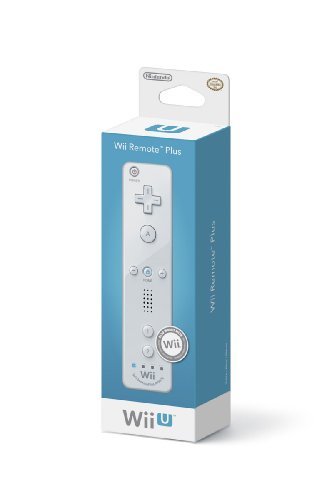
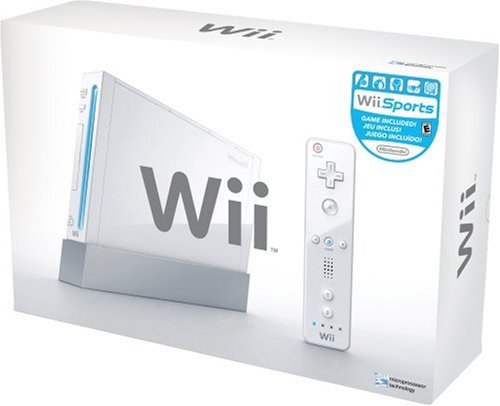
Wii remote (also referred to a Wiimote) is a device that controls the Nintendo's Wii console.
It a verycomfortable controller for gaming therefore if you want to learn how to use Wii remote on PC, read on.
Wiimote also works with with Wii U. Wii remote is more powerful than the previous video controllers. This is because Nintendo designed them to have advanced features to enhance usability. For example, it can even communicate with the PC's wireless Bluetooth link.
Wiimote's Uses and Features
Wiimote's significant feature is that it usesoptical sensor andaccelerometer technology to sense motion. This allows a video gamer to easily manipulate and interact with screen items. You can use Wii remote for multiple tasks such as:
- Aiming
- Swinging
- Pulling back and
- Using it to act like steering wheel
You can use Wii remote for gaming purposes, slide presentation and working with audio or video playlist.


Just Dance 2020 - Nintendo Wii Standard...
PLAY CO-OP WITH FRIENDS: Dance to our newest universes and beat the high score together; Listen to the Just Dance 2020 Playlist; Only available on Amazon Music Unlimited.
What Do You Need to Use Wii Remote on PC?
When connecting the Wii Remote to personal computer, you require the following:
- A Wii remote
- A Compatible software (such as GlovePIE).
- Bluetooth Adapter installed on PC (Should be Compatible with Wii Rempte)
Optionally, you can also get a Nunchuk. The Nunchuk is a controller that users occasionally connects to Wii remote to improve simplicity and control.
On Sale Today
On Sale Today
How to Use Wii Remote on PC – Connecting PC to Wii Remote
Connecting Wiimote to PC requires following these steps:
-
1
Download Wiimote Drivers -
2
Disable Driver Signature and Install Wiimote Driver -
3
Ensure you have working Bluetooth Adapter -
4
Connect to Wii Remote -
5
Setting up GlovePIE
1. Download Wiimote Drivers
The first step in how to use Wii remote on PC is download the Wiimote drivers. The Wii remote drivers are freely available online for download. You need Wii drivers installed on your PC to enable the PC to recognize the drivers.
Depending on your Windows Operating System, you can easily find the Wiimote drivers for both32 bit and64 bit versions.
As usual, the game developers bundle the drivers in a zip file so you have to unzip them into a folder before installing. If your computer cannot open zip files, download and install Winrar.
Please ensure that you use compatible drivers that meet your system specifications or else you may find errors.
You can find the drivers here:
64-Bit System
32-Bit System
How To Know if Your System is 32-bit or 64-bit?

That is pretty simple.
You need to access your system information.
On Windows 7, you can do this by
-
1
Right Click "My Computer" -
2
Click Properties -
3
Read what it says next System Type
On Windows 10, you can do this by using serveral methods including:
-
1
Right Click "This PC" -
2
Click Properties
Or
Search for "System" in the search bar.
- Find the Top BenQ Gaming Monitors Here
2. Disable Driver Signature and Install Wiimote Driver
Currently, Windows may have not digitally signed the Wii remote drivers. Therefore, you may find errors associated with driver signature as you attempt to install.
However, in most cases, this error is less prevalent with 64-bit Windows users since the operating system version can ignore it.
If you find such error, you have to disable driver signature restriction by following the steps below:
These steps are for latest update for Windows 10
-
1
Press theStart Button -
2
Press thePower Button -
3
HoldShift Key + Press Restart Button -
4
Before the Windows Restarts anOption Screenwill come up -
5
ChooseTroubleshoot -
6
Then ChooseAdvanced Options -
7
SelectStart Up Settings -
8
After Restarting, the Startup Settings Screen will appear -
9
Choose the 7th option by pressing7 Number Key or F7 Key.
Here is a Video Tutorial as well
The computer will restart without the enforcement and you will be able to install the Wiimote driver.
Click on the executable file "TinyInstaller" that you downloaded to install the driver.
The PC may prompt you to provide admin credentials to allow the installation to proceed. Once installed, you can verify whether you have installed the driver correctly.
You can do this by searching if it exists in the Program and Features Window. Within this Window, you can update or uninstall the driver.
3. Ensure you have working Bluetooth Adapter
Your Personal computer should have inbuilt Bluetooth adapter that is functioning.
You should then ensure that you installed your personal computer with the necessary Bluetooth drivers that meets the operating system specification.
You can download Bluetooth's device drivers from your PC manufacturer's websites.
- Looking for a Cheap but High-Resolution Gaming Monitor – Click Here
4. Connect to Wii Remote
Having installed both Wiimote and Bluetooth drivers, you can turn Bluetooth adapter on and ensure that you have Bluetooth visibility turned to "Always On".
On your Wii remote, press the 1+2 buttons concurrently until your PC Bluetooth detects and displays the Wii Remote's controller's icon.
At this entire time, you should ensure that theWii remote's LED lights blink continuously.
If your PC's Bluetooth device is unable to detect the Wii remote device, turn the Bluetooth adapter off and on and attempt pressing the orange circle.
Once the Bluetooth connection is successful, the screen will display Wii remote's name that is similar to "NINTENDO-RVT-CNT-01".
Click the 1+2 buttons once more on the controller. Then right click the Wii Remote icon and selectRefresh Services.
You can now use the Wii remote to work with software programs such as WiinRemote and GlovePIE.
- Loves Games – Get The Best Laptop For Sims 4 here.
5. Setting up GlovePIE

GlovePIE is an application that isprimarily used to control the computer using the virtual reality glove.
However, it has more functionalities of accepting signals from wide varieties of devices such as Wii Gear and further translating them into actions that are similar to mouse and keyboard events.
You can downloadGlovePIE from Here. Ensure that you download the latest version of the application.
Unzip the downloaded application to Program Files folder and create its shortcut link to the Windows Desktop.
Launch the app by clicking the shortcut and a white screen that contains "Untitled", "Variables" and "GUI" (Graphical User Interface) tabs will be displayed at first.
Since it uses scripting language, you need to learn its script to be able to work with it. Don't worry the scripting is very simple and it uses simple text tobind keys.
GlovePIE's advantage is that it is powerful and it allows you to utilize the Wii remote's capabilities to it's full potential.
Other Apps that can be used to bind keys include the following:
- BlueTunes
- WiinRemote
- Wii Key
- WiiMedia
- Virtual Drum Kit.
All are essential in accomplishing Wii Remote's capabilities and interface with PC, but they are not as powerful as GlovePIE.
Using Wii Remote as Game and Mouse Controller
The JoyToKey application also allows you to set the remote to perform actions that can be performed by typical PC mouse.
Such actions include scrolling through a list, steering a wheel and aiming, among other features.
You can download the software from here: JoyToKey
Wrap Up
Here I briefly talked about how to use Wii Remote on PC. If you have any questions, details to share, or any other concerns, please feel free to leave a reply.
If there is a newer or better software for interfacing Wii Remote on PC, please let your fellow gamers know.
How To Use Wii Remote On Pc
Source: https://techgearoid.com/articles/how-to-use-wii-remote-on-pc/
Posted by: naquinyouriaget.blogspot.com
0 Response to "How To Use Wii Remote On Pc"
Post a Comment